Audio mode is the fastest way to show that the widget can generate something useful beyond visuals. The best demos are short, concrete, and spoken the way a real listener would actually hear them.
What you’ll learn
- Which exact voice and format were used in this walkthrough
- What script is shown in the prompt field for this walkthrough
- How to explain
VoiceandFormatwithout overcomplicating them - Which exact result actions appear after generation finishes
Before you start
- Open Generate
- Switch to Audio mode
- Keep the first demo on
MP3with one short narration script
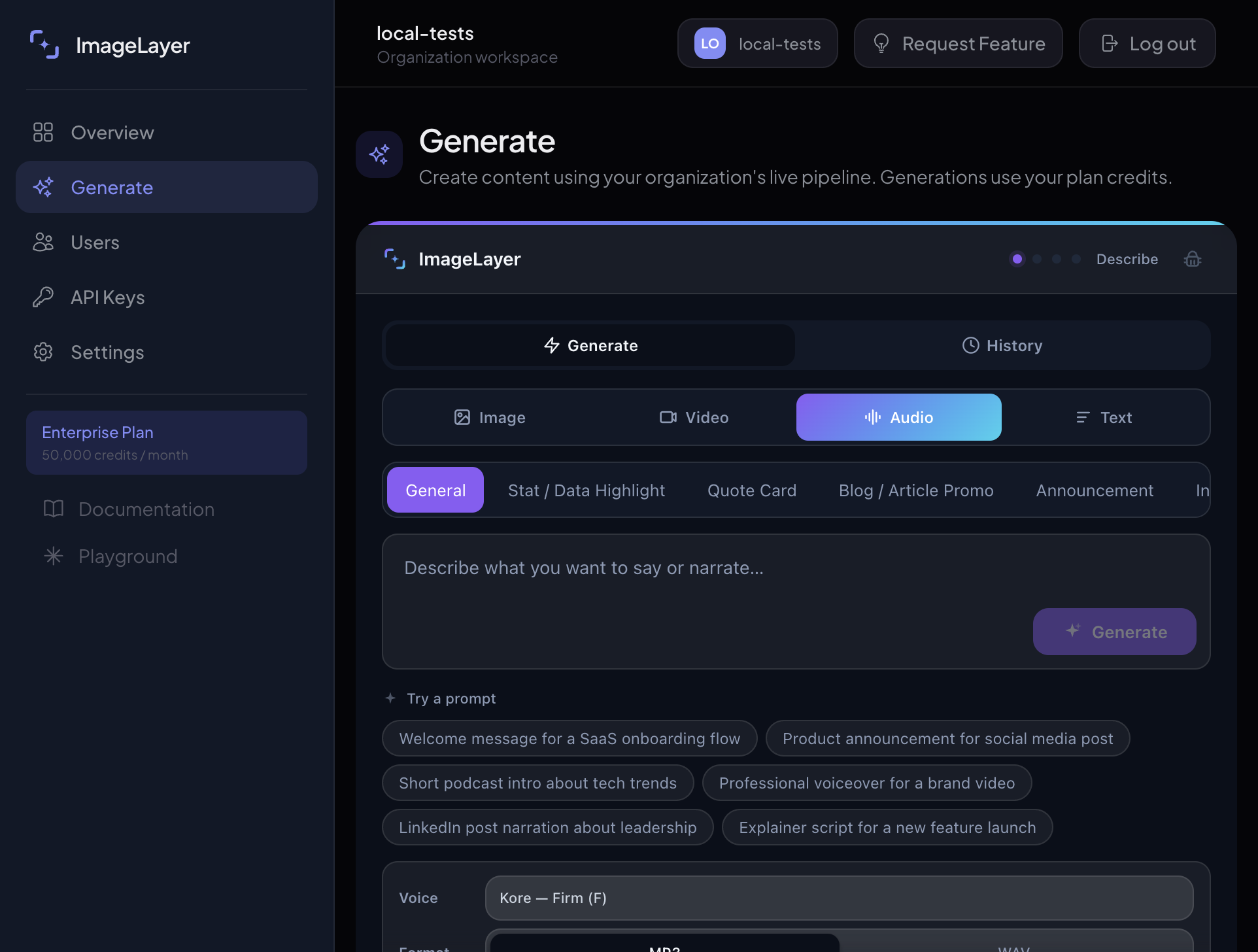
Set Voice to Kore - Firm (F) and keep Format on MP3
Click Audio in the mode selector, then match the same two settings shown in the screenshot.
- Under
Voice, chooseKore - Firm. - Under
Format, keep the first demo onMP3. - Explain that
Voicechanges delivery style, whileFormatchanges the exported file type. - Only switch to
WAVif the customer has a specific production reason for it.
Expected result
The customer knows exactly what kind of spoken delivery they are about to generate before the script is even pasted.
Paste one short narration script that sounds like real speech
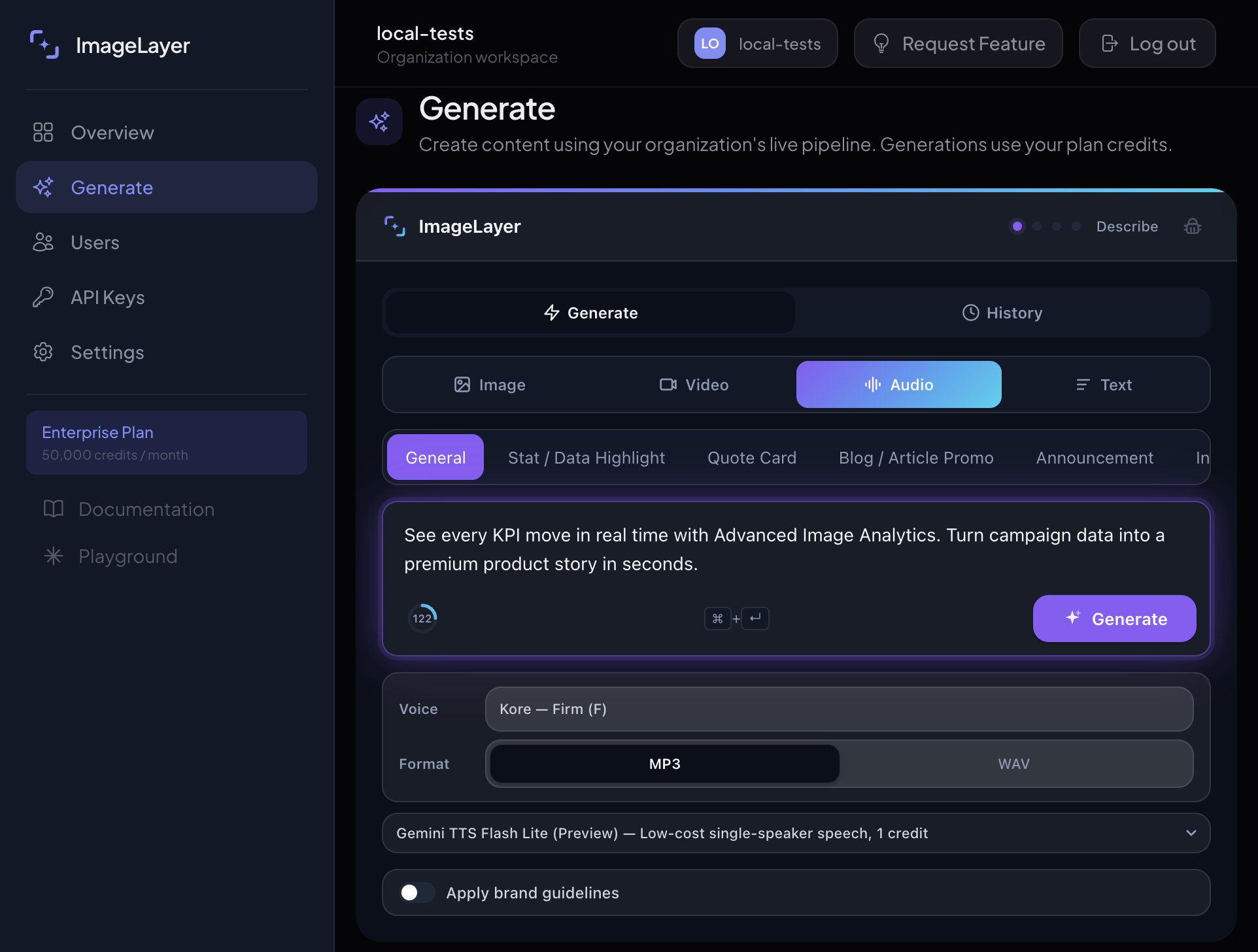
Paste this script into the textarea:
See every KPI move in real time with Advanced Image Analytics. Turn campaign data into a premium product story in seconds.- Write in full sentences, not fragmented notes.
- Keep the first script to one or two short lines.
- Use punctuation normally so the generated delivery has natural pauses.
- Keep the model shown in the screenshot selected for this walkthrough.
- Click
Generateonce the script reads like real speech.
Expected result
The generation request is specific enough that the final audio can be judged immediately instead of sounding like a generic placeholder.
Review the player, then keep or revise the read
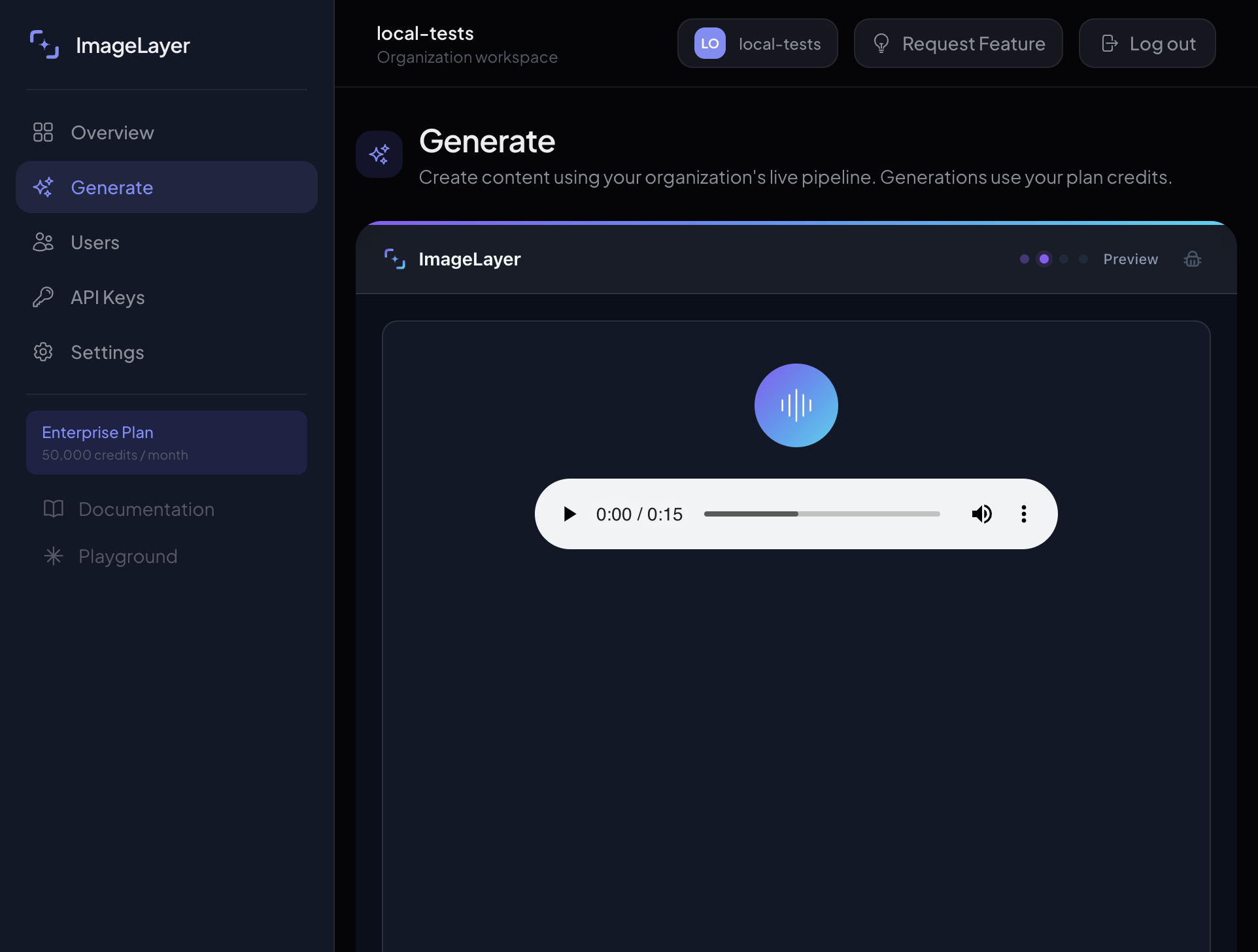
Once the player appears, review the output exactly the way the customer would consume it: listen all the way through, then choose the next action from the footer.
- Use
Downloadwhen the read is already usable. - Use
Generate againwhen the script is fine but the delivery still feels off. - Use
Edit promptif the wording itself needs work. - If tone is the problem, change
Voicebefore regenerating.
Expected result
The team can decide whether the spoken line is already usable or whether the script or voice choice needs one more pass.
Sample generated audio
This guide includes the exported MP3 example used alongside the walkthrough so the reader can hear the same voice, format, and delivery style referenced above.
Recommended defaults for customer onboarding
- One default voice that feels broadly usable, such as
Kore - Firm MP3as the first export format- One short reusable script for demos, screenshots, and onboarding
What to read next
- Video Generation if your team uses narration on generated clips
- Text Generation if you also want to show script creation inside the same widget
- Docs for audio-related widget events and configuration