Text mode is the simplest non-visual workflow in the widget. It works best when the same operator who is already generating images, videos, or audio also needs supporting copy without switching tools.
What you’ll learn
- What changes when the widget switches into
Textmode - Which exact short-form request was used in this walkthrough
- Which exact result actions appear after the draft is generated
- Which kinds of short-form text requests fit this workflow best
Before you start
- Open Generate or Playground if text mode is not enabled for your organization
- Switch the widget to Text mode
- Keep the first example narrow enough to judge in one quick read
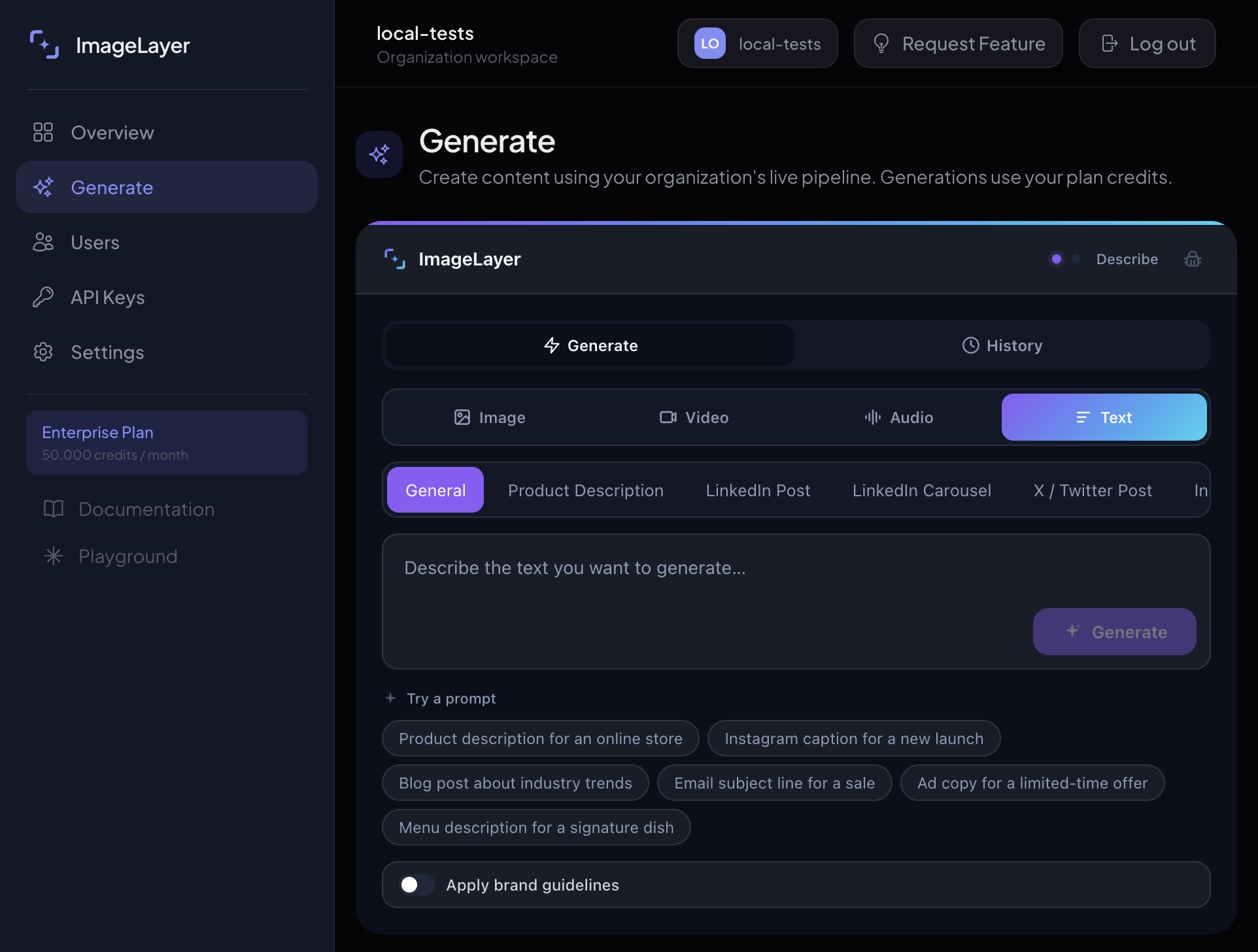
Open Text mode and point out what changes
Click Text in the mode selector. The most important thing to point out is what disappears: no aspect ratios, no image preview decisions, and no post-generation branding editor.
- Use text mode for contained outputs like captions, short posts, announcements, and CTA drafts.
- Note that the empty state now shows a
Try a promptrow plus text-specific tabs likeProduct DescriptionandLinkedIn Post. - Keep the first example practical and channel-specific.
- Do not oversell it as a full long-form writing assistant if your customer only needs short copy.
Expected result
The user sees a compact copy-generation workflow instead of a visual composition workflow with preview and branding steps.
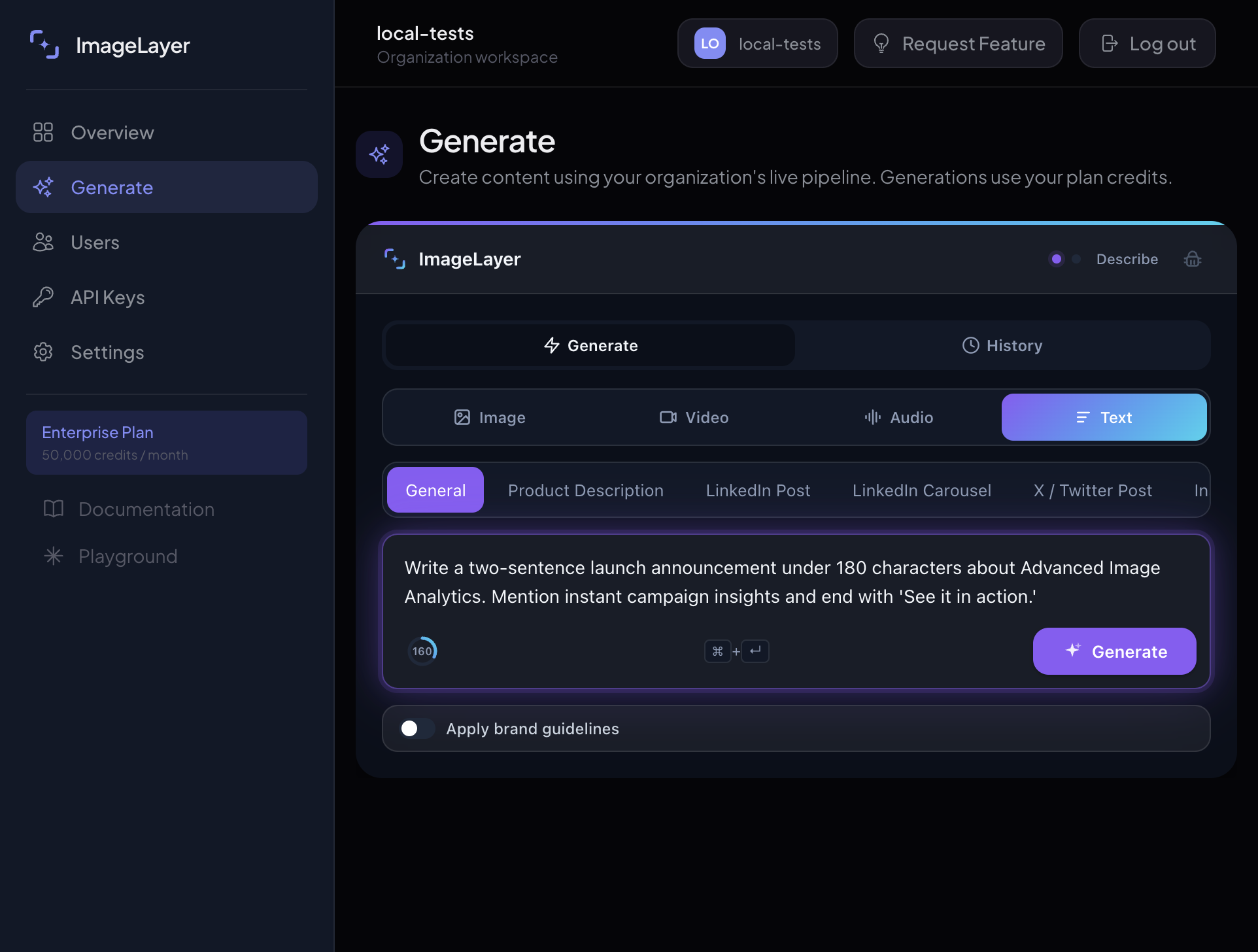
Use one exact short-form request in General mode
Use one concrete request and keep this specific walkthrough on General. The other text tabs are useful later, but this first pass is easier to explain as one compact prompt.
Write a two-sentence launch announcement under 180 characters about Advanced Image Analytics. Mention instant campaign insights and end with ‘See it in action.’- Keep
Generalselected for this exact walkthrough. - Use the other text tabs later when you want a more structured content type.
- Keep the first request narrow enough that the result can be judged in one quick read.
- Click
Generate.
Expected result
The request is specific enough to produce a usable first draft instead of broad brainstorming.
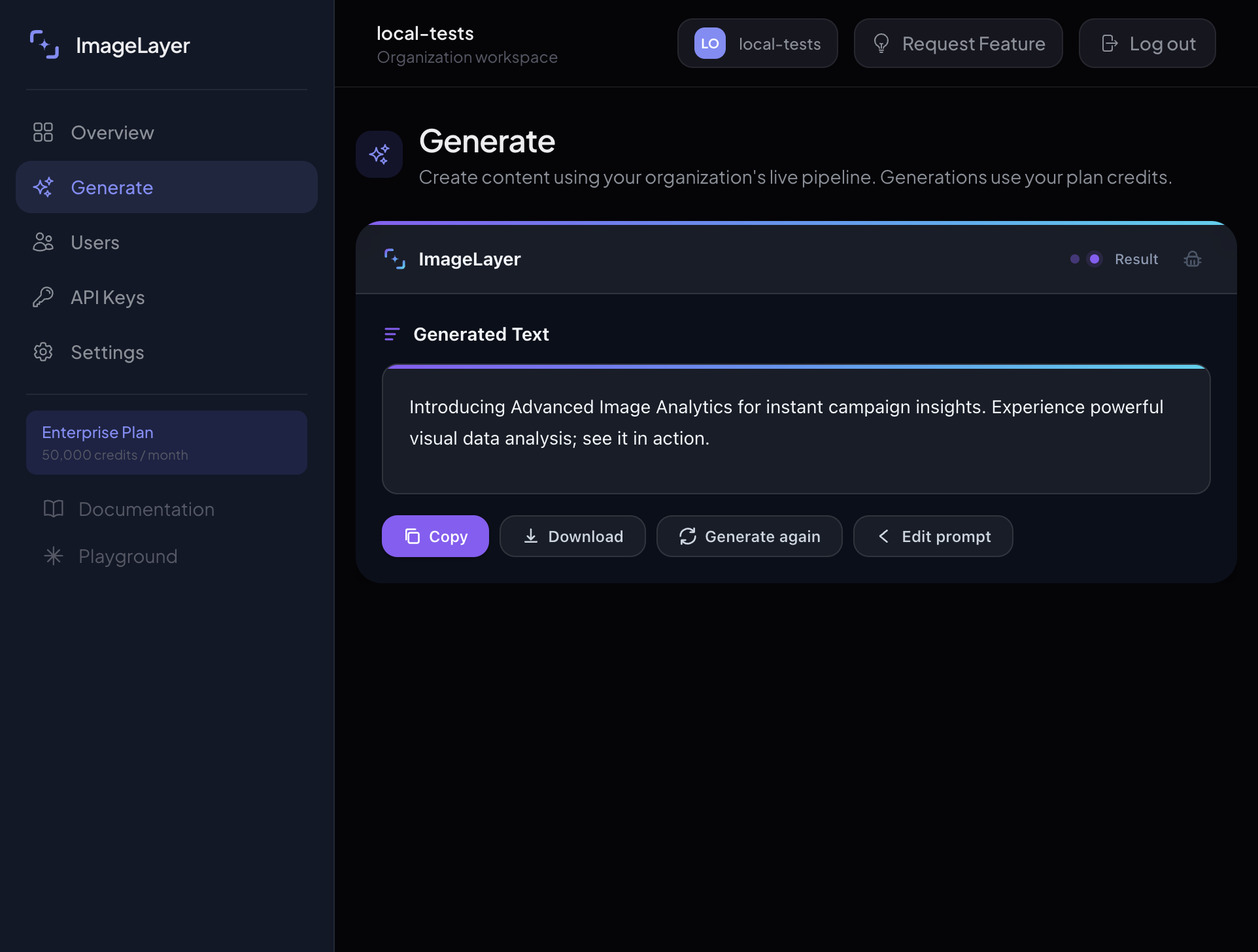
Review the draft, then keep, retry, or refine it
When the result card appears, call out the exact UI labels. The title at the top is Generated Text, and the footer actions tell the user what they can do next.
- Click
Copywhen the draft is ready to paste elsewhere. - Click
Downloadif the customer wants a plain-text export. - Click
Generate againif the framing is right but the wording is weak. - Click
Edit promptwhen the request itself was too vague.
Expected result
Customers can move from idea to usable copy inside the same workspace as their other media tasks.
Sample generated draft
Introducing Advanced Image Analytics for instant campaign insights. Experience powerful visual data analysis; see it in action.
This sample draft matches the short-form request shown above, so the guide reflects the actual result state visible in the screenshot.
Recommended first use cases
- Social captions
- Product announcements
- CTA variations
- Intro copy for audio or video narration scripts
What to read next
- Audio & Text-to-Speech if the generated text should become narration
- Content Type Templates for more structured repeatable workflows
- Docs for event-level details such as the text generated callback